Expressions in Properties and Investment Models
Property expressions in Weissr are a way to calculate property values dynamically from other data instead of having someone type them in. Whether you need simple arithmetic or complex conditional logic, expressions let you tailor calculations to your organisation's needs, and they keep the resulting values accurate, consistent, and up to date. This page covers the three directions data can flow: between properties, from the investment model into a property, and from a property into the investment model.
What can you do with property expressions?
Automate calculations: compute values automatically from other properties or from the investment model.
Apply conditional logic: use
IFstatements and logical functions to build expressions that adapt to different scenarios.Combine multiple data sources: pull together user input, other property values, and model data to produce one relevant value.
📌 Note: A property with an expression becomes read-only. Its value is calculated rather than entered by a user.
Expression syntax
Expressions must start with =. Everything after the equals sign is evaluated by Weissr. An expression can include:
Element | What you can use |
|---|---|
Numbers | Any numeric value. |
Arithmetic operators |
|
Comparison operators |
|
Conditional logic |
|
Logical functions |
|
Property codes | The codes defined in other property settings. |
Functions | A library of built-in functions, from |
Arguments inside a function are separated by a semicolon (;), for example RIGHT(value; 4).
👉 See Property Expression Functions for the full function library, with syntax, parameters, and worked examples for each function.
💡 Tip: Unbalanced parentheses are the most common cause of a failing expression. Check that every opening bracket has a matching closing one.
How do you add an expression to a property?
Expressions are configured on the property itself, in the Edit request property dialog.
Go to the Property List and click the pen icon next to the property you want to calculate, or create a new property.
Set the Type to match what your expression returns. Numeric results need Decimal, Integer, or Money. For a Decimal type, tick Percentage to display the result as a percentage.
Tick Calculated, labelled The value is calculated and read only.
Under Way of calculating, select Expression.
Type your expression in the Expression field, starting with
=.Click Save.
After saving, the dialog shows a Property is read only banner and the Default value fields are greyed out, because a calculated property takes its value from the expression instead of from user input or a default.
📌 Note: Select Receives value from model instead of Expression when the value should be read from an investment model cell rather than calculated from other properties. See Retrieving Investment Model Data to Properties.
How do you edit an existing expression?
Open the property from the Property List using the pen icon.
Edit the text in the Expression field.
Click Save. Values are recalculated from the updated expression.
⚠️ Warning: Changing a property's Code breaks every expression that references it, because expressions reference properties by code. If you must change a code, update each expression that uses it.
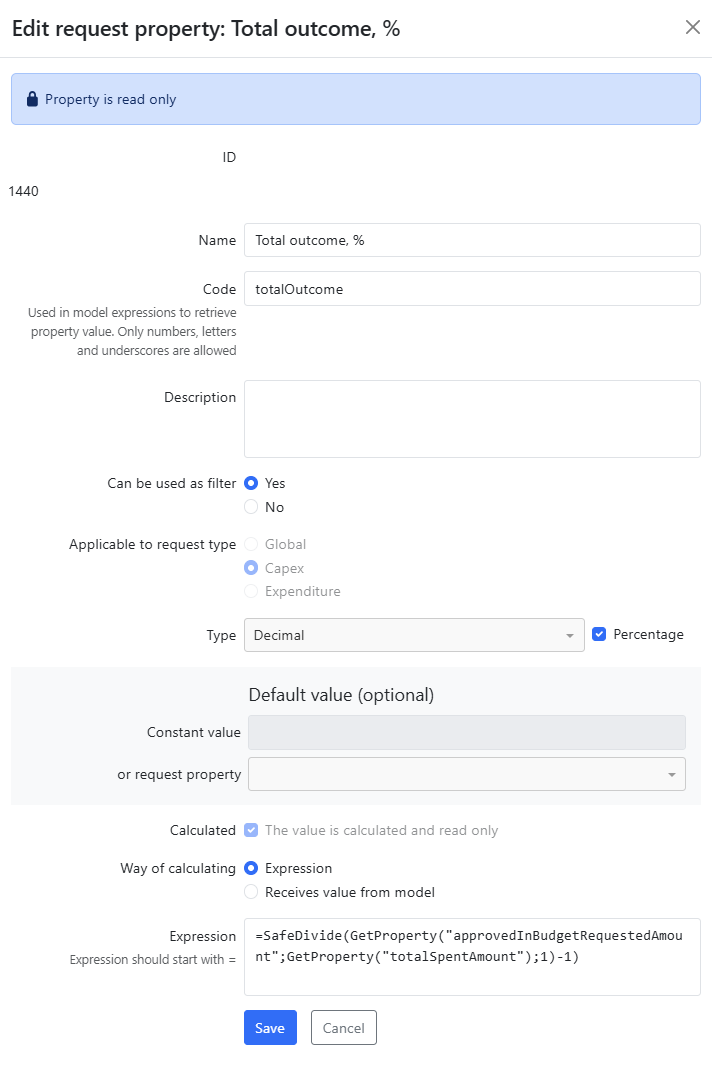
Example: total outcome as a percentage
This property is named Total outcome, % with the code totalOutcome. Its type is Decimal with Percentage ticked, it is marked Calculated, and its way of calculating is Expression:
=SafeDivide(GetProperty("approvedInBudgetRequestedAmount"); GetProperty("totalSpentAmount"); 1)-1
Reading it from the inside out:
The two
GetPropertycalls fetch the approved in-budget requested amount and the total spent amount, each by its code.SafeDividedivides the first by the second, and returns the third argument instead if the divisor is zero or empty, so an unspent request cannot produce a division error.Subtracting
1turns the ratio into a variance. The fallback of1is chosen so that an invalid divisor gives1 - 1, meaning the property shows zero rather than a misleading number.
Calculating property values from investment model data
A property can retrieve a numerical value directly from a cell in the first (year) column of the investment model. When the value in the model changes, the linked property refreshes automatically, so the property always reflects the current model.
👉 See Retrieving Investment Model Data to Properties for the property settings this requires.
Using property values in the investment model
The flow also runs the other way. Numerical property values can be used inside the investment model itself, through special functions written either in a model expression or directly in a model cell. Once there, a property value can feed calculations or conditional logic in the model.
👉 See Property values in the Investment Model for the available functions and how to configure the property code they rely on.
Troubleshooting expressions
Check the code, not the name: expressions reference the property code. A correct-looking property name will still fail.
Verify the property type: investment model expressions need numeric properties, meaning Money, Integer, or Decimal. Text and boolean properties will make the expression fail.
Balance your parentheses: every opening bracket needs a matching closing one.
Convert text before calculating: values from dropdowns and from
MapPropertyValueare text. Wrap them inTextToNumberbefore doing arithmetic.Watch for circular references: if two expression properties refer to each other, Weissr reports an error rather than calculating. Break the loop with an intermediate property.
📌 Note: From version 5.3.3, calculation order follows dependencies. When one expression property refers to another, Weissr calculates the input property first, and property names no longer affect the order.
Related pages
Property Expression Functions: the full function library with syntax and examples.
Property values in the Investment Model: using property values inside the model.
Retrieving Investment Model Data to Properties: configuring a property to read from the model.