Retrieving Investment Model Data to Properties
A request property can pull its value straight from a row in the investment model, so that model output such as key financial data derived from the investment model becomes available on the request itself and can be shown in lists, used in filters, and referenced by other properties. Setting this up is a two part job: first you find the model data type code of the row in Model builder, then you point the property at that code.
How does a property receive a value from the investment model?
Each row in an investment model can carry a model data type code. When a property is configured to recieve a value from the row with the same code, the property reads the value of that row from the investment model attached to the request. The property is read only for users, because the model owns the value.
The property receives the value from the corresponding investment model BlockRow cell, first (year) column, as defined by the model data type code in the property settings.
What do you need before you start?
Access to the Capex Strategy module and to Model builder, so you can look up the row code.
Administrator rights to Capex Management, so you can create or edit a property.
The property must use a numeric Type: Integer, Decimal or Money. String, date and boolean properties cannot receive values from a model.
How to configure a property to receive a value from the investment model
Step 1: Find the model data type code of the investment model row
The code lives on the row itself in Model builder, not in the property settings, so start here and copy the exact value.
Open the Capex Strategy module and enter the current strategy.
Navigate to Model builder.
Open the investment model that contains the row whose value you want to retrieve.
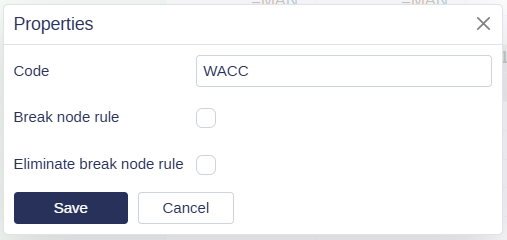
Right click the row and select Properties.
Copy the value in the Code field. This is the model data type code, for example
WACC.
💡 Tip: If the row has no code yet, type one in the Code field and click Save. Use a short, descriptive code with letters, numbers and underscores only, for example
WACCorNPV_TOTAL. Copy the code exactly as it appears, since the property has to match it character for character.
Step 2: Configure the property to receive the value
With the code in hand, open the property that should display the value.
Go to Administration → Properties.
Click the pen icon next to the property you want to configure, or create a new property.
Set Type to a numeric type: Integer, Decimal or Money. Select Percentage as well if the model row holds a percentage, such as WACC.
Select Applicable to request type: Capex.
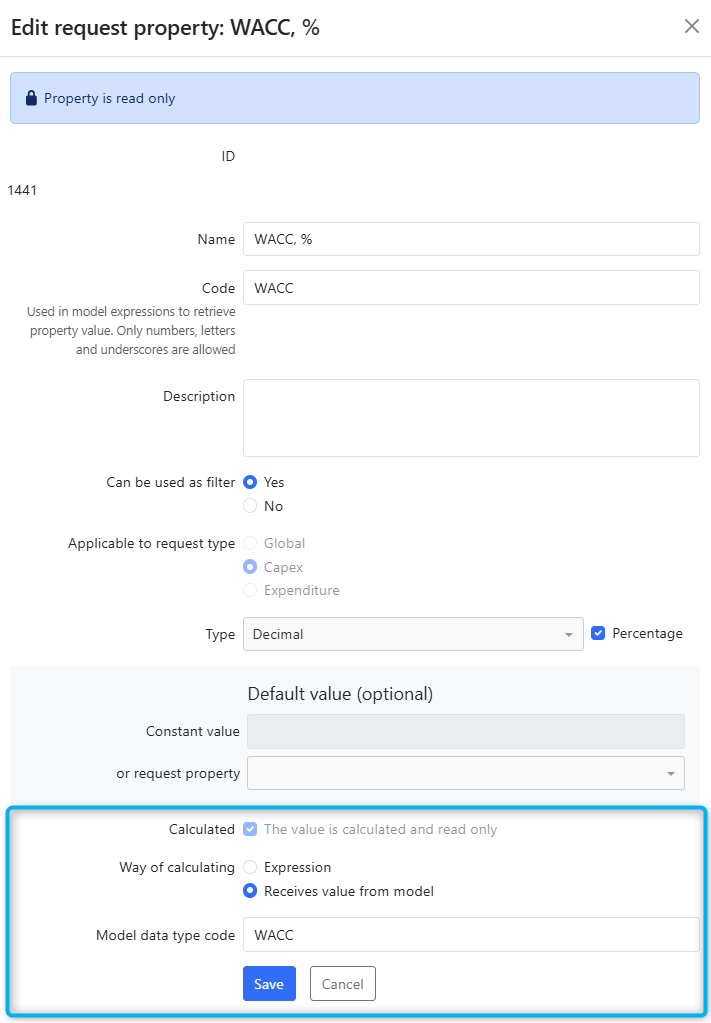
Tick Calculated, so that the value is calculated and read only.
Under Way of calculating, select Receives value from model.
In Model data type code, paste the code you copied in Step 1.
Click Save.
Calculated cannot be changed after the property is created. If an existing property needs to become calculated, create a new property instead.
Why is my property not showing a value from the model?
Symptom | Likely cause | What to do |
|---|---|---|
The property stays empty on every request | The model data type code does not match the row code in Model builder | Reopen the row Properties dialog in Model builder and compare the codes character for character |
The property is empty on some requests only | Those requests use an investment model where the row has no code, or the row does not exist | Add the same code to the corresponding row in each model that needs to feed the property |
The value looks wrong or belongs to the wrong period | The property always reads the first (year) column of the row | Check which column the value should come from, and add a model row that calculates the value you need |
Receives value from model is not available in the property form | Calculated is not ticked, or the property type is not numeric | Tick Calculated and set Type to Integer, Decimal or Money |
A user reports they cannot edit the value | Calculated properties are read only by design | Change the value in the investment model, which then updates the property |
Related pages
👉 Property values in the Investment Model covers the opposite direction, using a property value inside a model expression.
👉 Expressions in Properties and Investment Models explains the alternative way of calculating a property, using an expression instead of a model value.
👉 Investment Model explains how investment models are structured and attached to requests.