Property Expression Functions
This page collects every documented function you can use in Weissr property expressions, with syntax, parameters, and worked examples for each one.
Before you start: expression essentials
A few rules apply to every function on this page.
Expressions start with
=. Anything after the equals sign is evaluated by Weissr.Arguments are separated by a semicolon (
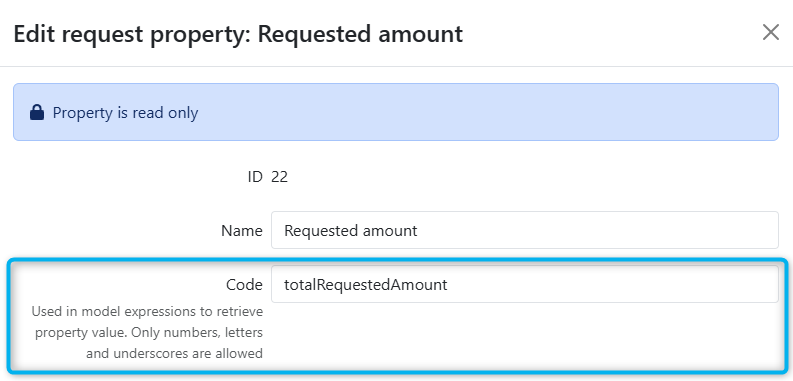
;), for exampleRIGHT(value; 4).Properties are referenced by their code, not their name. Find the code in Property List by clicking the pen icon next to a property. Codes may contain letters, numbers, and underscores.
A property with an expression becomes read-only. Its value is calculated from the expression instead of being entered by a user.
Calculation order follows dependencies. When one expression property refers to another, Weissr calculates the input property first. Property names no longer affect the order.
💡 Tip: Unbalanced parentheses are the most common cause of a failing expression. Check that every opening bracket has a matching closing one.
Function quick reference
Function | What it does |
|---|---|
| Returns the value of another property, identified by its code. |
| Converts an email address into the matching user's full name. |
| Returns one value when the condition is true and another when it is false. |
| Returns true when a value is empty. Normally used inside IF. |
| Returns the fallback when the value is empty, and the value itself otherwise. |
| Returns the result paired with the first matching key, or the default when nothing matches. |
| Divides, but returns a fallback when the denominator is zero or empty. |
| Converts a text value into a number so it can be used in calculations. |
| Formats a number as text using a format code. |
| Returns the last characters of a text value. |
| Replaces text matching a regular expression. |
| Translates one value into another using a lookup list. |
Reading values from other properties
GetProperty
The GetProperty function retrieves the value of another property using its property code. It is the function you will use most often, and it appears inside almost every other example on this page. It is useful for:
Pulling property values into model expressions in the investment model.
Combining or calculating values across multiple properties.
Ensuring consistent data references across your configurations.
Example: in a property expression
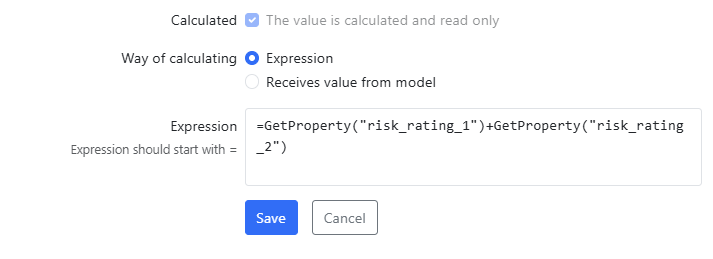
You can use the GetProperty function inside property expressions to perform calculations using values from other properties.
=GetProperty("risk_rating_1")+GetProperty("risk_rating_2")
This expression sums the values of two risk rating properties.
Example: in the investment model
In the investment model, GetProperty can be used to dynamically pull numeric values into your calculations.
⚠️ Only use properties with numeric types: Money, Integer, or Decimal in investment model formulas
Example
=GetProperty("total_risk_rating")
This expression fetches the numeric value of the property with the code total_risk_rating and uses it in the model.

GetUserName
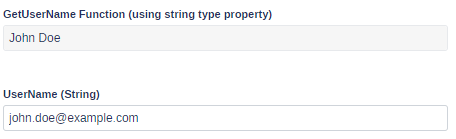
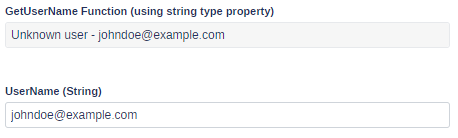
The GetUserName function converts an email address stored in another property into that user's full name, meaning first name and surname. It is supported only in string-type properties. john.doe@examle.com
=GetUserName(GetProperty("username_string"))
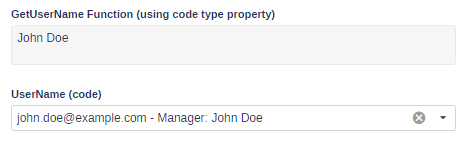
This evaluates the value in the property with the code username_string. If a user exists with that email address, the function returns that user's first and last name. When you point GetUserName at a code-type property, users are matched on the code in the code and value pairs.
What it returns
Match found: the user's full name.
No match: the text
Unknown user - [the input string]. For example, an input ofjohn.doe@example.comwith no matching user returnsUnknown user - john.doe@example.com.
Use case: auto-assign a budget holder from the OPEX cost center
A setup the assigns a budget holder automatically based on the cost center a user selects, so nobody has to pick the responsible person by hand. The property uses the expression: =GetUserName(MapPropertyValue("opex_cost_center_number"; "budget_holder_name_map")which displays the name of the responsible user (Budget Holder) for the selected OPEX cost center. The property in turn uses four related properties, in the table to the right.
Summary of Logic Flow
User selects an OPEX cost center number.
“OPEX cost center name” is automatically populated based on mapping in property “OPEX cost center name imported”.
“Budget holder name” is then auto-assigned using a two-step mapping:
Cost center → Email (via property “OPEX cost center name imported”)
Email → Display name (via
getUserNamefunction)
Property | Role |
|---|---|
OPEX cost center number | The property the user fills in. Drives everything else. |
OPEX cost center name imported | Hidden. Holds the mapping from cost center number to cost center name. |
OPEX cost center name | Read-only. Shows the cost center name via |
OPEX cost center name imported | Hidden. Holds the mapping from cost center number to budget holder email. |
Conditional logic and empty values
IF
IF returns one value when a condition is true and another when it is false. Conditions can use the comparison operators =, <>, >, >=, <, <=, and can be combined with AND and OR.
=IF(GetProperty("amount") > 1000000; "Large"; "Small")
💡 Tip: If you find yourself nesting IF to test the same property against several values, use Switch instead. If you are nesting IF only to handle an empty value, use IfEmpty.
IsEmpty
The IsEmpty function checks whether a property value is empty. It is typically combined with IF to make decisions based on the presence or absence of a value.
Example: are two departments the same?
This expression sets a code property to "yes" or "no" depending on whether two other properties match, treating a missing value as "no".
Syntax
=IF(
    IsEmpty(GetProperty("requesting_department"));
    "no";
    IF(
        IsEmpty(GetProperty("benefitting_department"));
        "no";
        IF(
            GetProperty("requesting_department") = GetProperty("benefitting_department");
            "yes";
            "no"
        )
    )
)
The expression checks, in order:
If
requesting_departmentis empty, return "no".If
benefitting_departmentis empty, return "no".If both have values, compare them: equal returns "yes", otherwise "no".
📌 Note:
IsEmptydefines what "empty" means across the whole function library.IfEmptyandSafeDivideuse the same definition.
IfEmpty NEW IN 5.3.3
The IfEmpty function returns a fallback value when a value is empty, and the value itself otherwise. It replaces the older pattern IF(IsEmpty(x); fallback; x), which forces you to write the same expression twice.
Syntax
IfEmpty(value; fallback)
Argument | Description |
|---|---|
| The value to test. Accepts a nested expression, not only a literal. |
| What to return when the value is empty. Also accepts a nested expression. |
Example: show who to contact about a request
Requests are owned by different people at different stages. A technical responsible is named once the scope is worked out, a project leader is assigned at execution, and before either exists the requester is the only person to ask. A single "contact" property gives reports and notifications one reliable name to show, instead of a column that is blank for half the portfolio.
Written with IF and IsEmpty, each property has to be named twice:
=IF(IsEmpty(GetProperty("technical_responsible"));
    IF(IsEmpty(GetProperty("project_leader"));
       GetProperty("requester");
       GetProperty("project_leader"));
    GetProperty("technical_responsible"))
IfEmpty says the same thing in reading order, most specific owner first:
=IfEmpty(GetProperty("technical_responsible");
   IfEmpty(GetProperty("project_leader");
     GetProperty("requester")))
A technical responsible has been named: returns that person.
No technical responsible yet, but a project leader is assigned: returns the project leader.
Neither has been set: returns the requester, who always exists.
All three are empty: returns empty, with no error.
📌 Note: "Empty" means the same here as it does in the
IsEmptyfunction, so the two behave consistently. A value of 0 counts as filled in, not empty, so a numeric property holding 0 is returned as 0 rather than falling back.
Switch NEW IN 5.3.3
The Switch function maps a value to a result by matching it against a list of key and result pairs, with a default at the end. It replaces long chains of nested IF that test the same property over and over.
Syntax
Switch(value; key1; result1; key2; result2; ...; default)
Argument | Description |
|---|---|
| The value to match against the keys. |
| A pair. Repeat as many times as you need. Matching uses the same equality rules as the |
| The single trailing argument returned when no key matches. Required. |
Example: set the hurdle rate from the investment category
Some organisations apply a different minimum return depending on why an investment is being made. A regulatory investment has to happen regardless of return, while a growth investment is held to a higher bar.
Written with nested IF, the rule repeats the same property on every line:
=IF(GetProperty("investment_category") = "regulatory"; 0;
  IF(GetProperty("investment_category") = "replacement"; 0.08;
    IF(GetProperty("investment_category") = "cost_reduction"; 0.10;
      IF(GetProperty("investment_category") = "expansion"; 0.12;
        IF(GetProperty("investment_category") = "strategic"; 0.15; 0.10)))))
Switch states the same rule once:
=Switch(GetProperty("investment_category");
  "regulatory";0;
  "replacement";0.08;
  "cost_reduction";0.10;
  "expansion";0.12;
  "strategic";0.15;
  0.10)
The category is "expansion": the property returns 0.12, meaning a 12% hurdle.
The category is "regulatory": the property returns 0, since compliance investments are not held to a return requirement.
A new category is added to the dropdown but not to the expression: the property returns 0.10, the default, so requests keep calculating instead of failing.
The category is empty: it matches a key that is also empty, otherwise it falls through to the default.
📌 Note: The rates above are written as decimals, so 0.08 means 8%. If your properties hold whole numbers, use 8, 10, and 12 instead.
Using the result in another expression
Because Switch returns a number here, the hurdle rate can drive further logic. This expression flags whether a request clears its own hurdle:
=IF(GetProperty("irr") >= GetProperty("hurdle_rate"); "Meets hurdle"; "Below hurdle")
💡 Tip: Keep the hurdle rate in its own expression property rather than repeating the Switch inside every calculation that needs it. When the finance team changes a rate, you update one property instead of hunting through several expressions.
📌 Note: A Switch without a trailing default, or a key with no result next to it, raises the standard expression error when you save. It will not quietly return a wrong value.
Numbers and calculations
TextToNumber
The TextToNumber function converts text values into numeric values, so they can be used in mathematical expressions. This matters most for values selected in dropdowns, which are stored as text even when they look like numbers.
TextToNumber(GetProperty("code_of_another_property"))/100
Here TextToNumber converts the value returned by GetProperty into a number, which is then divided by 100.
💡 Tip:
MapPropertyValuealways returns text. Wrap it inTextToNumberwhenever the mapped result feeds a calculation.
SafeDivide NEW IN 5.3.3
The SafeDivide function divides one value by another, but returns a fallback value when the denominator is zero or empty. It replaces the manual guard that otherwise has to be written around every division.
Syntax
SafeDivide(numerator; denominator; valueIfInvalid)
Argument | Description |
|---|---|
| The value to divide. Accepts a nested expression. |
| The value to divide by. Accepts a nested expression. |
| What to return when the denominator is zero or empty. Accepts a nested expression. |
Example: cost deviation against the approved amount
Tracking how far a request has moved from its approved amount is a standard piece of follow-up reporting. The division breaks as soon as a request has not been approved yet, which is most of the portfolio at any given time.
Written by hand, the guard is longer than the calculation it protects:
=IF(OR(GetProperty("approved_amount") = 0; IsEmpty(GetProperty("approved_amount")));
    0;
    (GetProperty("total_outcome")/GetProperty("approved_amount"))-1)
SafeDivide handles both invalid cases in one argument:
=SafeDivide(GetProperty("total_outcome"); GetProperty("approved_amount"); 1)-1
Outcome 110 against an approved amount of 100: returns 0.1, a 10% overspend.
The approved amount is 0: returns the fallback 1, which becomes 0 after the subtraction, so the request reports no deviation instead of an error.
The request has not been approved yet, so the amount is empty: same result, 0.
💡 Tip: Choose the fallback with the surrounding arithmetic in mind. Here the calculation subtracts 1 from the result, so a fallback of
1produces a clean 0% rather than the -100% you would get from a fallback of0.
⚠️ Warning: An empty numerator is not guarded. A request with an approved amount but no spend yet divides normally and reports -100% deviation. Wrap the calculation to suppress it until there is something to compare:
=IF(IsEmpty(GetProperty("total_outcome")); ""; SafeDivide(GetProperty("total_outcome"); GetProperty("approved_amount"); 1)-1)
Another use: cost per unit of added capacity
The denominator does not have to be a monetary value. Comparing investments by what they deliver per krona is straightforward until a replacement investment adds no capacity at all:
=SafeDivide(GetProperty("approved_amount"); GetProperty("added_annual_capacity"); 0)
Requests that add capacity get a real cost per unit. Replacement and compliance requests, where the added capacity is 0 or blank, return 0 instead of breaking the column for everyone else.
TEXT
The TEXT function formats numbers by applying a format code. Use it to display numbers in a more readable form, or to combine numbers with text and symbols.
Syntax
=TEXT(value; format_text)
Argument | Description |
|---|---|
| The numeric value to convert into formatted text. |
| A text string defining the format to apply. |
Format examples
Expression | Result | What it does |
|---|---|---|
|
| Currency with a thousands separator and two decimals. The value is rounded. |
|
| Percentage with one decimal place. |
|
| Pads with leading zeros to a fixed length. |
Using other functions inside TEXT
The value argument can itself be a function, so you can retrieve a value and format it in one step.
=TEXT(GetProperty("price_property"); "$#,##0.00")
Example: a five-digit sequence number that tolerates an empty value
=IF(IsEmpty(GetProperty("project_sequence")); ""; TEXT(GetProperty("project_sequence"); "00000"))
project_sequenceis 78: returns00078.project_sequenceis empty: returns an empty string.
Text handling
LEFT
The LEFT function extracts a set number of characters from the beginning of a text value. The value can be a property reference or a text literal. It is the counterpart to RIGHT, which reads from the end instead.
Syntax
=LEFT(value; count)
Argument | Description |
|---|---|
| The text to read from. Accepts a property reference, a text literal, or a nested expression. |
| An integer defining how many characters to take from the start of the text. |
Example: property reference
=LEFT(GetProperty("project_code"); 3)
Returns the first three characters of the project_code property value. If the code is SWE-2026-014, the expression returns SWE.
Example: text literal
=LEFT("Hello, World"; 5)
Returns Hello.
Example: take a section out of the middle of a value
There is no dedicated substring function, so combine LEFT and RIGHT when the part you need sits in the middle of a value. Read from the end first, then trim the result from the start.
=LEFT(RIGHT(GetProperty("project_code"); 8); 4)
For a project code of SWE-2026-014, RIGHT returns the last eight characters, 2026-014, and LEFT then takes the first four of those, giving 2026.
⚠️ Warning:
LEFTcounts a fixed number of characters. If the length or structure of the source data changes, the expression will keep working but return the wrong part of the text. A property code that gains a longer prefix is a common cause.
💡 Tip: Use
LEFTwhen the part you want sits at the start of the value, such as a country or site prefix, andRIGHTwhen it sits at the end, such as a year or a running number.
RIGHT
The RIGHT function extracts a set number of characters from the end of a text value. The value can be a property reference or a text literal.
Example: property reference
=RIGHT(GetProperty("Start Year"); 4)
Returns the last four characters of the Start Year property value.
Example: text literal
=RIGHT("Hello, World"; 5)
Returns World.
⚠️ Warning:
RIGHTcounts a fixed number of characters. If the length or structure of the source data changes, the expression will keep working but return the wrong part of the text.
REPLACE
The REPLACE function replaces text matching a regular expression. It is mainly used to strip special characters or formatting out of rich text properties, but works for any string manipulation.
Syntax
=REPLACE(value; searchRegex; substitution)
Argument | Description |
|---|---|
| The text or property value to work on. |
| A regular expression identifying the pattern to replace. |
| The text that replaces each match. |
Example: strip formatting out of a rich text property
=REPLACE(GetProperty("background"); "<[^>]+>"; "")
This removes the HTML tags from a rich text property, leaving plain text.
Mapping values between lists
MapPropertyValue
The MapPropertyValue function translates one value into another, which lets you turn codes or identifiers into readable labels or into numbers you can calculate with.
Argument | Description |
|---|---|
| The code of the property whose value should be mapped. |
| A two-column, tab-separated list. The first column holds the incoming value, the second holds what to return. |
💡 Tip: Build the two columns in Excel, copy them, and paste straight into the formula editor. Check that tabs separate the columns and that there are no extra spaces or line breaks between the quote marks.
📌 Note:
MapPropertyValuealways returns a string. Wrap it inTextToNumberif the result is used in a numeric calculation.
Example: map node IDs to names
MapPropertyValue("nodeId";
"2734	AMC
3050	BPM
3046	SPS")
If nodeId is 3050, the function returns BPM.
Example: map confidence levels to labels
MapPropertyValue("confidence_level";
"1-20	Very low
21-40	Low
41-60	Moderate
61-80	High
81-100	Very High")
If confidence_level is 21-40, the function returns Low.
Example: map labels to numbers and calculate a risk score
=(TextToNumber(MapPropertyValue("likelihood";
"rare	1
unlikely	2
possible	3
likely	4
almost_certain	5")))*(TextToNumber(MapPropertyValue("impact";
"insignificant	1
minor	2
moderate	3
major	4
catastrophic	5")))
This maps the likelihood and impact labels to numbers and multiplies them into a risk score.
💡 Tip: A mapping list that only exists to feed another expression can live in a hidden property, keeping it out of the form while remaining editable by administrators.
Troubleshooting expressions
Check the code, not the name: expressions reference the property code. A correct-looking property name in the expression will still fail.
Verify the property type: investment model expressions need numeric properties, meaning Money, Integer, or Decimal. Text and boolean properties will make the expression fail.
Balance your parentheses: every opening bracket needs a matching closing one.
Convert text before calculating: values from dropdowns and from
MapPropertyValueare text. Wrap them inTextToNumberbefore doing arithmetic.Reset the cell: if an investment model cell shows red or displays an error, resetting the cell often clears it.
Watch for circular references: if two expression properties refer to each other, Weissr reports a clear error rather than calculating. Break the loop by introducing an intermediate property.
Functions not yet documented
The expression library contains further functions that do not yet have documentation on this page. They are listed here so you know they exist:
AccumulatedCapex, Left, Trim,