Property values in the Investment Model
Numerical property values can be used inside the investment model, so a value someone selects or enters on the request form can drive the model's calculations. You bring those values into the model with special functions, written as a formula in the investment model’s cell. This page covers the property code the functions rely on, the two functions available, and what to check when a model expression is not calculating.
What do you need before you start?
Every function on this page identifies a property by its code, not by its name. Before you can read a property value into the investment model, the property must have a code configured in its settings.
Open the Property List and click the pen icon next to the property.
Read the Code in the property settings.
⚠️ Warning: Changing a property's code breaks every expression that references it. If you must change a code, update each model expression and model cell that uses it.
How do you use a property value in a model calculation?
Use GetProperty to pull a numeric property value into the model. The function takes the property code and returns its current value, which you can then use in any model calculation.
=GetProperty("total_risk_rating")
This fetches the numeric value of the property with the code total_risk_rating and uses it in the model. When the property value changes, the model calculation follows it.
How do you return different model values based on a dropdown selection?
Use CheckPropertyValue. The function evaluates the code value of a property identified by its property code, which lets the investment model apply conditional logic based on what the user selected on the form. It is designed for use in expressions within investment models, and it works only on properties of the code type.
Property codes for dynamic properties are defined in the property edit form, and the code values themselves are the Codes and Values pairs configured on the property.
Syntax
CHECKPROPERTYVALUE("property code"; "code value")
Argument | Description |
|---|---|
| The code of the code-type property to inspect. |
| The code you are testing for. It must match the code assigned to the option in the property's Codes and Values list exactly. |
The function returns true when the selected option matches the code value, so it is normally wrapped in IF to decide what the model should show.
Example: one model value per dropdown option
Scenario: you want the investment model to show a different value depending on what the user selects in a code property on the form. The property has three options, Yes, No, and Maybe, with the codes 1, 2, and 3.
Expression to use in the investment model cell
IF(
    CHECKPROPERTYVALUE("Property code name"; "1"); 10;
    IF(
        CHECKPROPERTYVALUE("Property code name"; "2"); 20;
        IF(
            CHECKPROPERTYVALUE("Property code name"; "3"); 30
        )
    )
)
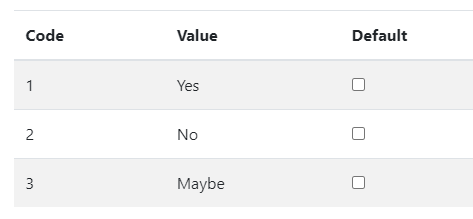
With that expression in place:
Selecting Yes in the form displays 10 in the model.
Selecting No displays 20.
Selecting Maybe displays 30.
📌 Note: The expression tests the code, not the label the user sees. An option labelled Yes with the code
1is matched byCHECKPROPERTYVALUE("Property code name"; "1").
💡 Tip: Keep an equal number of left and right parentheses. Nested
IFstatements are the most common place for a bracket to go missing.
Where do you write these functions?
Both functions can be used in two places, and the choice depends on how widely you want the logic to apply.
In a model expression, when the calculation belongs to the model definition and should apply wherever that expression is used.
Directly in a model cell, when only that one cell needs the property value within that projects investment model..
Why is my model expression not calculating?
Work through these checks when a model expression returns nothing, or when a cell shows an error.
Check the code, not the name: both functions reference the property code. A correct-looking property name will still fail.
Match the code value exactly: in
CheckPropertyValue, the code value in the expression must match the code on the property option exactly.Verify the property type:
GetPropertyin the model needs Money, Integer, or Decimal.CheckPropertyValueneeds a code type property.Balance your parentheses: every opening bracket needs a matching closing one.
Use a dot for decimals: write
0.5rather than0,5.Reset the cell: if a cell in the investment model appears in red, indicating an error, reset the cell.
Related pages
Expressions in Properties and Investment Models: how expressions work and the three directions data can flow.
Property Expression Functions: the full function library with syntax and worked examples.
Retrieving Investment Model Data to Properties: the other direction, configuring a property to read a value from the model.